
Payment Method Manager (PMM) is a configurable component that lets your customers save a payment method for later use without incurring an immediate charge. You can add PMM directly to Experience Cloud as a component or via a Screen Flow so your customers can manage their payment methods.
Key Capabilities #
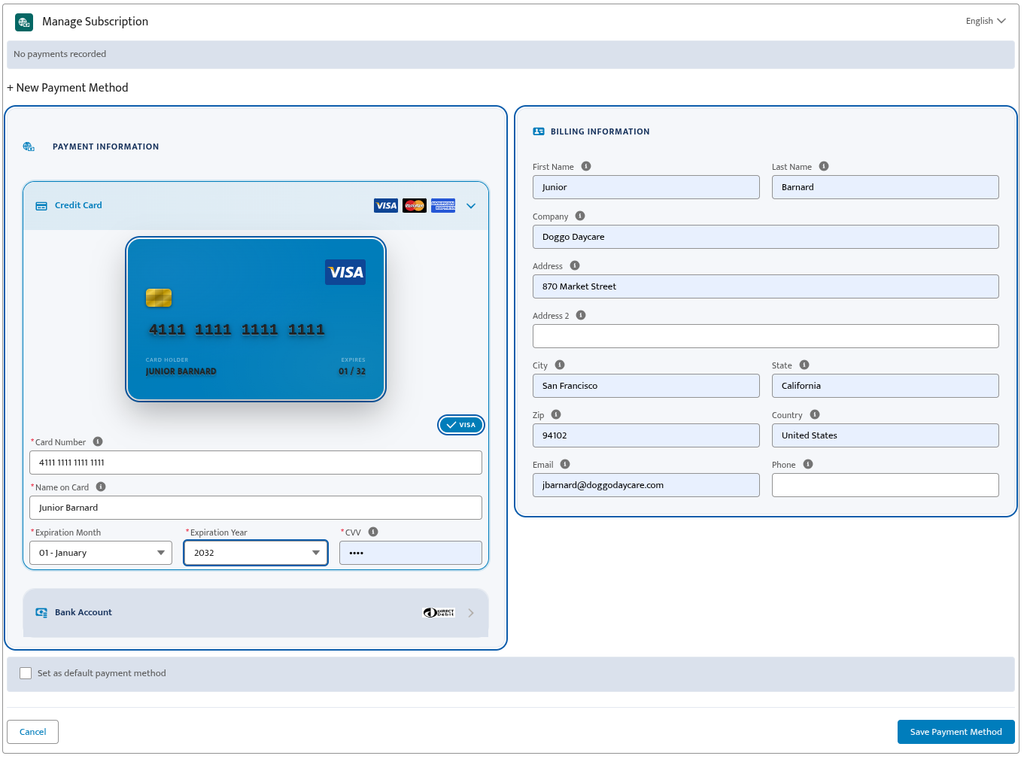
- Credit Card Registration: Auto-detects card brands and captures the cardholder name, card number, expiry, and CVV.
- Bank Account (ACH) Registration: Captures account number, routing number, account type, and account holder name.
- Billing Address Capture: Captures street, city, state, postal code, country, email, and phone.
- Multi-Language Support: Includes English, German (de), Spanish (es), and French (fr).
- Multi-Gateway Tokenization: Tokenizes across primary and secondary gateway pools concurrently.
- Experience Cloud Placement: Compatible with both Aura and LWR sites.
- Screen Flow: Exposes standard Flow input and output parameters.
- Payment Method Management: Supports listing, updating, deleting, and assigning default payment methods.
How it Works #
- A customer submits their payment information via the Payment Method Manager component or a screen flow in Experience Cloud.
- Chargent validates the request and user access.
- Your Payment Gateway(s) tokenizes the payment method, but does not initiate a charge.
- If Multi-Gateway Tokenization is enabled, it tokenizes against the primary gateway and every gateway in the configured pool at the same time. See the Multi-Gateway Tokenization section below for more information.
- The Payment Method & Token(s) are saved to Salesforce.
- Your customer receives a success confirmation or an error message.
- The saved Payment Method can be used for any future payments.
Component Configuration & Placement #
You can add the Payment Method Manager component (paymentMethodManager) to your Experience Cloud site as a component or Screen Flow. See the following properties to understand the available options when adding the component to a page or flow.
Component Properties
| Property Label | API Name | Required | Description |
|---|---|---|---|
| Record ID | recordId | No | Optional. Use the current record ID when placing on record pages; leave blank for no-order mode |
| Chargent Object Lookup Field Name | chargentObjectLookupFieldName | No | Optional. Enter the lookup field name only when resolving a Chargent Order from a non-order record context |
| Gateway ID | theGatewayId | No | Enter the ID of the gateway to use. If not provided, uses the gateway from the Chargent Order. |
| Payform Behavior | payformBehavior | No | Choose how the component processes new payment method registrations. Only “Register Token” is currently available. |
| Form Title | formTitle | No | Custom title shown in the component header. Defaults to “Manage Subscription” when blank. |
| Show Payment Status Viewer | showPaymentStatusViewer | No | Display the current payment status from the Chargent Order. Default: on |
| Hide Success Page | hideSuccessPage | No | When checked, the success page will not be displayed. Default: off |
| Hide Failure Page | hideFailurePage | No | When checked, the failure page will not be displayed. Default: off |
Flow Output Variables
When embedded in a Screen Flow, Payment Method Manager passes the following outputs back to your Flow:
| Output Label (API Name) | Type | Description |
|---|---|---|
Payment Method ID (paymentMethodId) | Text | The ID of the created or selected payment method |
Success (success) | Boolean | True if the operation completed successfully |
Error Message (errorMessageOutput) | Text | The error message if the operation failed |
Multi-Gateway Tokenization (MGT) Support #
The Payment Method Manager fully supports Multi-Gateway Tokenization (MGT). MGT lets organizations tokenize a customer’s payment method across multiple payment gateways in a single registration step.
How MGT Works
- Primary Gateway: The primary gateway is dynamically resolved from your org’s System Default Gateway setting.
- Gateway Pool: Admins configure additional secondary gateways via the Multi-Gateway Tokenization tab in the Chargent App.
- Execution Mode: You can select All Active Tokenizable Gateways or specify an Explicit List of up to 13 gateways.
- Resiliency: Tokenization uses Continue on Partial execution—if one secondary gateway fails, successful tokens from the primary and other pool gateways are still saved to Salesforce.
See our Multi-Gateway Tokenization documentation for more information. A Chargent representative must enable Multi-Gateway Tokenization for your org. Please contact us to enable MGT.
Setup & Implementation Guide #
Option 1: Placing PMM on an Experience Cloud Page (Aura or LWR)
- Navigate to Setup → All Sites and open Builder for your Experience Cloud site.
- Select the page where you want to embed payment method registration (e.g., Account Detail or Payment Settings).
- Click Components in the left panel.
- Locate Chargent Payment Method Manager under Custom Components and drag it onto your page canvas.
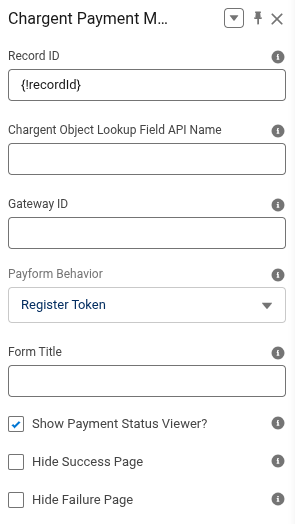
- In the Property Inspector, set your desired parameters (e.g., set
Record IDto{!recordId}if placed on a record page). See the Component Properties section above for more information.
- Click Publish.
Option 2: Embedding PMM in a Screen Flow
- Navigate to Setup → Flows and open your Screen Flow.
- Add a Screen Element to your Flow canvas.
- Drag Payment Method Manager from the Custom section into the screen layout.
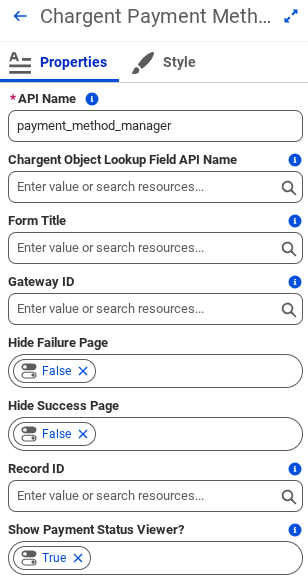
- Create an API Name and configure your input parameters (e.g., set
Record IDto{!recordId}). See the Component Properties section above for more information.
- Depending on your use case, add a Decision Element after the screen to evaluate output variables:
- Path 1 (Success): If
{!success}equals true, route to a confirmation screen using{!paymentMethodId}. - Path 2 (Failure): If
{!success}equals false, route to an error screen displaying{!errorMessageOutput}.
- Path 1 (Success): If
- Save and Activate your Flow.
Setting Up Multi-Gateway Tokenization
- Open the Chargent App from the Salesforce App Launcher.
- Click the Multi-Gateway Tokenization tab.
- Toggle Enable Multi-Gateway Tokenization to ON.
- Select your Gateway Pool Mode:
- All Active Tokenizable Gateways: Automatically includes all active tokenization-enabled gateways.
- Explicit List: Choose specific secondary gateways using the dual list box.
- Click Save.
See the Multi-Gateway Tokenization section above for more information about this feature.
Testing Payment Method Manager
- Test your configuration by navigating to the page in your community where you placed your component or flow.
- Enter test card and billing information (see your Gateway-Specific Guide for test card examples).
- Verify a new Payment Method record appears in Salesforce.
Using the Payment Method Manager #
When your customers access a page that includes the PMM, they will see a list of their current saved Payment Methods and can create a new one. Your customers will follow these steps to create a new Payment Method.
- Click + New Payment Method.
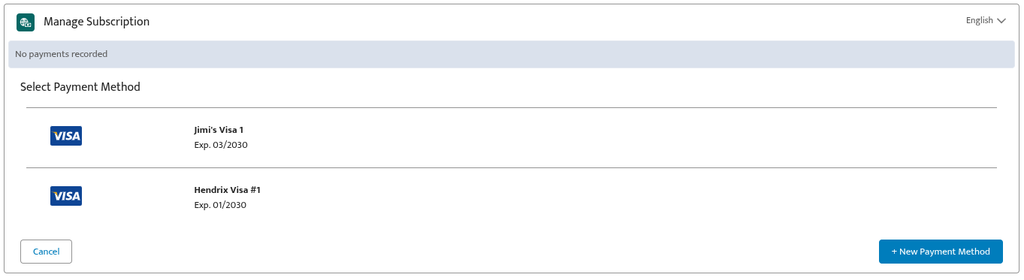
- Select either Credit Card or Bank Account and enter your Payment Method details and Billing Information.
- Check Set as default payment method if you want this to be your primary method of payment.
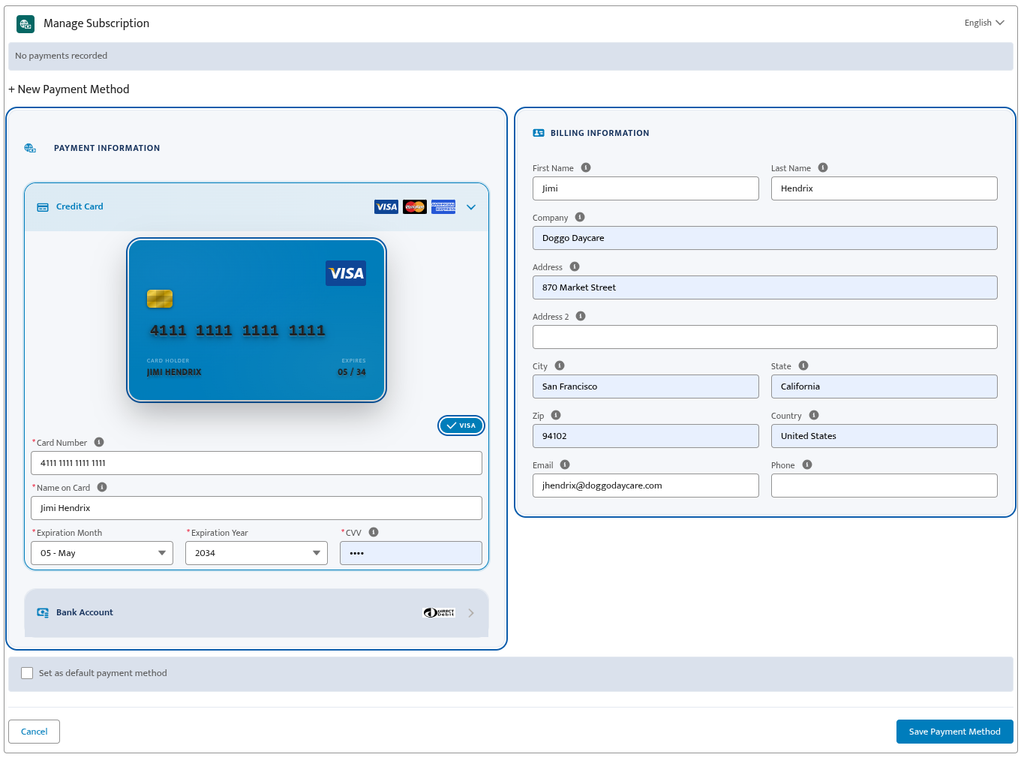
- Click Save Payment Method.
- Upon success, your user will see a message stating “Success: Payment Method Added”.

- Click Done.
- The new Payment Method will appear in your list of Payment Methods and when making future payments.