Release Title: Chargent version 7.97
Release Date: September 4, 2025
This version is no longer available to download via the Package Installation Manager (PIM). Customers may only install or update to the latest version of Chargent, which includes features, enhancements, and fixes from all previous versions. For more information about updating Chargent, see Chargent Installation & Updates.
For information about our latest release, please refer to Release Notes.
Release Overview #
Chargent version 7.97 provides a fix to our Cybersource gateway integration, ensuring that Chargent meets Cybersource’s updated certificate requirement. See the details below for more information. If you have any questions, please contact our support team. We are always happy to help!
Not sure what version of Chargent you’re on? Click here to find out.
Release Details #
Cybersource Certificate Requirement
Chargent versions 7.85 and 7.96 updated our Cybersource gateway integration, ensuring that Chargent meets Cybersource’s Certificate Requirement. This present version, Chargent version 7.97, fixes an issue wherein Cybersource’s P12 authentication would not complete.
Instructions: Per the new credential requirement, all Cybersource customers must update to Chargent v7.97 or later via the Package Installation Manager (PIM) and follow the 8-step process in the Cybersource Gateway Guide: Creating Your Gateway Integration in Salesforce.
Customers using Chargent for Commerce Cloud can visit Chargent for Commerce Cloud: Cybersource Certificate Requirement for instructions.
Known Issue #
Button Visibility When Creating a New Cybersource Gateway Record
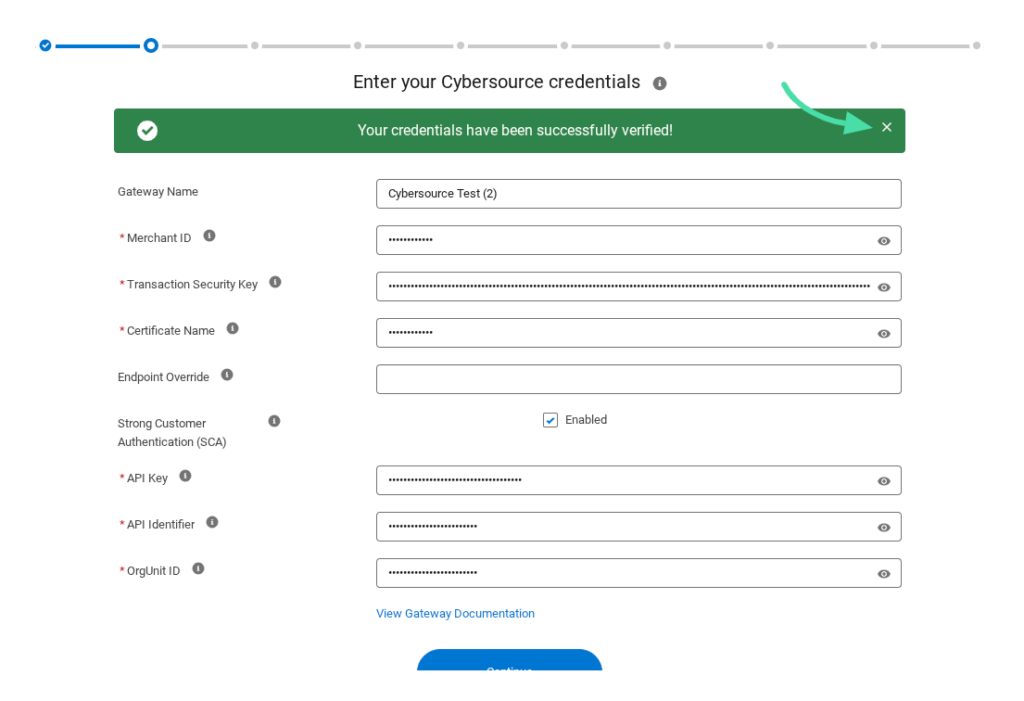
When creating a new gateway record using the Chargent Setup Wizard, the ‘Continue’ button may only be partially visible after entering your gateway credentials, enabling Strong Customer Authentication (SCA), and clicking Sign In. This issue does not occur when updating an existing gateway record.
Workaround: To view the entire ‘Continue’ button, close the toast message by clicking the X in the top right corner, as pictured below. Alternatively, click any visible portion of the ‘Continue’ button to move forward in the Gateway Setup Wizard.