
Usage-Based Billing (UBB) represents a flexible subscription model for Chargent that scales with your business. With UBB, instead of basing your subscription on a specific number of licenses, your billing is calculated based on the total number of transaction calls made to your payment gateway. This alleviates the need to assign Chargent’s licenses and allows Chargent to scale with your transaction volume, so you only pay for what you need.
This billing model is beneficial to all Chargent customers, but is particularly beneficial to merchants whose volume fluctuates due to holidays, seasonal factors, or product releases.
Learn more about the benefits of Usage-Based Billing by visiting Benefits of Usage-Based Billing (UBB) | How Chargent Helps.
Note: This documentation page describes Chargent’s usage-based billing subscription pricing model and is not related to a Chargent feature.
Definitions #
The following terms are defined to add clarity to the following documentation. These definitions are not representative of our Terms & Conditions.
- Gateway Callout: Any callout to a payment gateway, as represented by the Platform Event, Chargent Immediate Aggregation, and Aggregation Type of Gateway_Usage.
- Transaction Type: Represents the payment action taken, for example, Authorization, Charge, Register Token, Refund, or Void.
Understanding Your Usage Count #
For customers on a usage-based billing model, each gateway callout will incur a charge. This includes all requests to the gateway, such as authorizations, captures, and other updates, regardless of approval status. Examples of billable requests include, but are not limited to, callouts made by Transaction Sync, account updates for tokenization, and other routine or automatic gateway interactions. Each gateway callout is considered a “transaction” under the usage-based billing structure and will be billed accordingly.
See our Terms & Conditions for detailed information.
UBB-Specific Considerations #
License Assignment Not Required
Customers subscribed to UBB receive an unlimited number of licenses. Additionally, licenses do not need to be assigned to any users, simplifying the overall setup and maintenance of Chargent. Feel free to disregard any mention of assigning Chargent’s licenses in any of your orgs, including Production orgs.
Exclude Non-ACH Payment Methods From Transaction Sync
By default, Transaction Sync includes all transactions created using Chargent (ACH, credit cards, cash, and checks). To avoid usage charges for non-ACH transactions, you must exclude them from the batch, reducing the number of callouts to your gateway.
We recommend all merchants who are subscribed to UBB and plan to use Transaction Sync follow the instructions in How to Configure Transaction Sync to Exclude Non-ACH Payment Methods.
View Your Usage Metrics #
You can monitor your usage in the following ways:
- Usage Reports: Track your usage for this month or a previous one.
- Chargent Aggregation Query: Use the Developer Console to test individual transaction types to see how many gateway callouts are involved.
- Real-time Monitoring: Gain a deeper understanding of how various transaction types in Chargent affect your usage count.
It’s important to note that every gateway treats transactions differently. For example, some gateways require two callouts when initially tokenizing and charging a customer, but one for any additional charges made using the token. We recommend testing charges, authorizations, voids, and refunds, both with untokenized and tokenized payment methods, to determine the number of callouts expected for any given transaction type.
Note: Gateway transaction count for usage is based on a Custom Platform Event called ‘Chargent Immediate Aggregation’. As such, the results provided via the Chargent Aggregation object provide an approximation of your expected usage. Please refer to your contract pricing for your specific cost per gateway callout and cost tiers.
Create a Report for Accruing Usage – This Month
To ensure you are within the limits of your usage tiers for a given month and estimate upcoming usage costs, create a report based on the Chargent Aggregation object. Specifically, the Gateway Transaction Count field provides an approximate count for callouts to the gateway, closely representing the Platform Event that determines your monthly UBB cost, Chargent Immediate Aggregation.
- In Salesforce, click the AppLauncher
 .
. - Search for and select Reports.
- Click New Report.
- In the left sidebar, select All.
- Search for and select the Chargent Aggregations Report Type.
- Click Start Report.
- In the left sidebar, select the Filters tab.
- Set “Show Me” to “All chargent aggregations”.
- Set “Date” to “This Month”.
- In the left sidebar, click the left arrow to open the Fields menu.
- Add the following fields to your report:
 .
.| Field Name | Description |
| Aggregation Name | The name of and link to the Aggregation record. |
| Date | Date for the aggregation record. |
| Day in week | Name of the weekday (For example, Monday, Tuesday, etc.) |
| Completed Payment Transaction Count | Shows the number of successful/approved charges and credits. |
| Gateway Transaction Count | Count of transactions processed through the gateways via Chargent packages. This count is a very close approximation to your expected usage. |
- Click Save & Run.
- Provide a Report Name, for example, “Chargent Usage Report – This Month”.
- Provide a Report Description, for example, “This report provides Chargent accrued usage for this month via the Chargent Aggregations object.”.
- Select your desired folder and click Save.
Create a Report for Historical Usage – Last Month
Modify the report created in the previous section to provide an approximate count of your previous month’s gateway callouts. As mentioned above, the Gateway Transaction Count field provides an approximate count for callouts to the gateway, closely representing the Platform Event that determines your monthly UBB cost, Chargent Immediate Aggregation.
- In Salesforce, click the AppLauncher .
- Search for and select Reports.
- Select the report created in the previous step, for example, “Chargent Usage Report – This Month”.
- Click the down arrow and select Save As.
- Provide a Report Name, for example, “Chargent Usage Report – Last Month”.
- Provide a Report Description, for example, “This report provides Chargent accrued usage for the previous month via the Chargent Aggregations object.”
- Select your desired folder and click Save.
- Click Edit.
- In the left sidebar, select the Filters tab.
- Set “Date” to “Last Month”.
- Click Save & Run.
Monitor Your Usage With the Developer Console
If you’re primarily interested in learning about how many callouts are sent to your gateway for a specific transaction type, you can run a query in the Developer Console. This option allows you to see a daily tally, where the Transaction Count (ChargentBase__GU_Transaction_Count__c) field on the Chargent Aggregation object will increase by 0, 1, or 2 when a transaction (charge, register token, refund, authorize, etc.) is made. This increase (or lack thereof) represents the number of gateway callouts made.
To test the number of gateway callouts required for a specific transaction type, follow these steps:
- In Salesforce, click the gear icon and select Developer Console.
- Near the bottom, select the Query Editor tab.
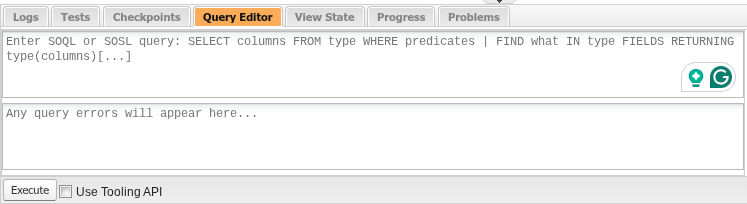
- Copy and paste one of the following queries into the textbox below the tab:
Query Results Not Limited to Today
SELECT Id, Name, ChargentBase__Date__c, ChargentBase__Day_In_Week__c, ChargentBase__GU_CPT_Count__c, ChargentBase__GU_Transaction_Count__c
FROM ChargentBase__Aggregation__c
WHERE Name LIKE ‘Gateway%’
ORDER BY ChargentBase__Date__c DESC
Query Results Limited to Today
SELECT Id, Name, ChargentBase__Date__c, ChargentBase__Day_In_Week__c, ChargentBase__GU_CPT_Count__c, ChargentBase__GU_Transaction_Count__c
FROM ChargentBase__Aggregation__c
WHERE Name LIKE ‘Gateway%’ AND createdDate = TODAY
ORDER BY ChargentBase__Date__c DESC
- Click Execute.
- Note the current number in the column for the Transaction Count field (ChargentBase__GU_Transaction_Count__c).
- Perform a transaction, for example, use the Payment Console to charge a payment method that has not yet been tokenized.
- In the Developer Console, click Refresh Grid.
- Note the new number in the column for the Transaction Count field.
- Manually calculate the difference between the two values.
Monitor Your Usage in Real-Time with Salesforce Inspector Reloaded
You can monitor your usage in real-time using the Event Monitor in the Salesforce Inspector Reloaded browser addon or using Workbench. Using Event Monitor, you can subscribe to the Chargent Immediate Aggregation custom platform event to view the event contents and visualize each gateway callout. While this method does not provide a queryable running count (see the section above), it allows you to see the events that contribute directly to your usage tally. The following example shows how you can use Salesforce Inspector Reloaded to subscribe to the Chargent Immediate Aggregation custom platform event.
To subscribe to the custom platform event:
- Install the Salesforce Inspector Reloaded add-on (to learn more, see Your Guide to Salesforce Inspector Reloaded).
- While logged into Salesforce, click the tab on the right to open Salesforce Inspector Reloaded.
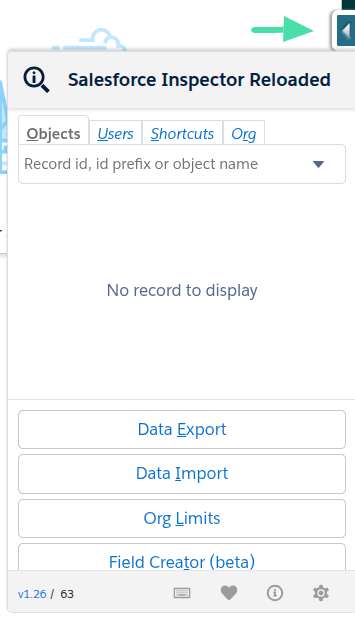
- In the Salesforce Inspector Reloaded window, find and click Event Monitor.
- Select the following picklist values:
- Channel Type: Custom Platform Event
- Channel: Chargent Immediate Aggregation

- Click Subscribe.
- Test a transaction and note the results in the Event Monitor window.
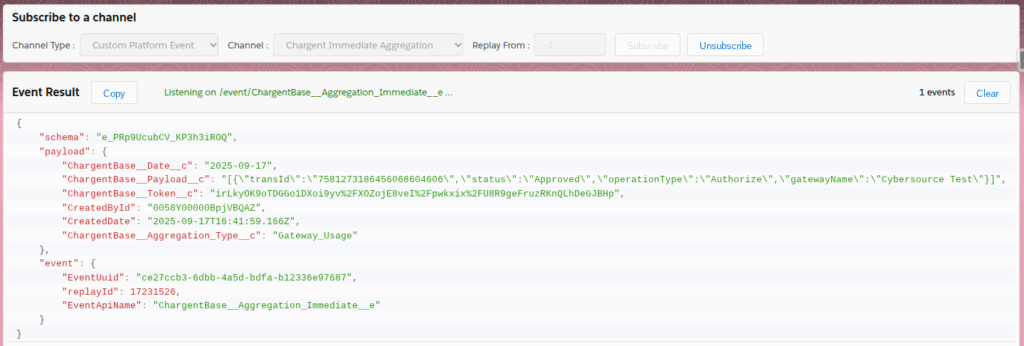
The results will provide information about the transaction. For example, the transaction in the screenshot above was an approved authorization sent to the Cybersource Test gateway. The results will also inform you of the number of events (each event denotes a gateway callout). Make sure to clear the results if you plan to test additional transaction types.